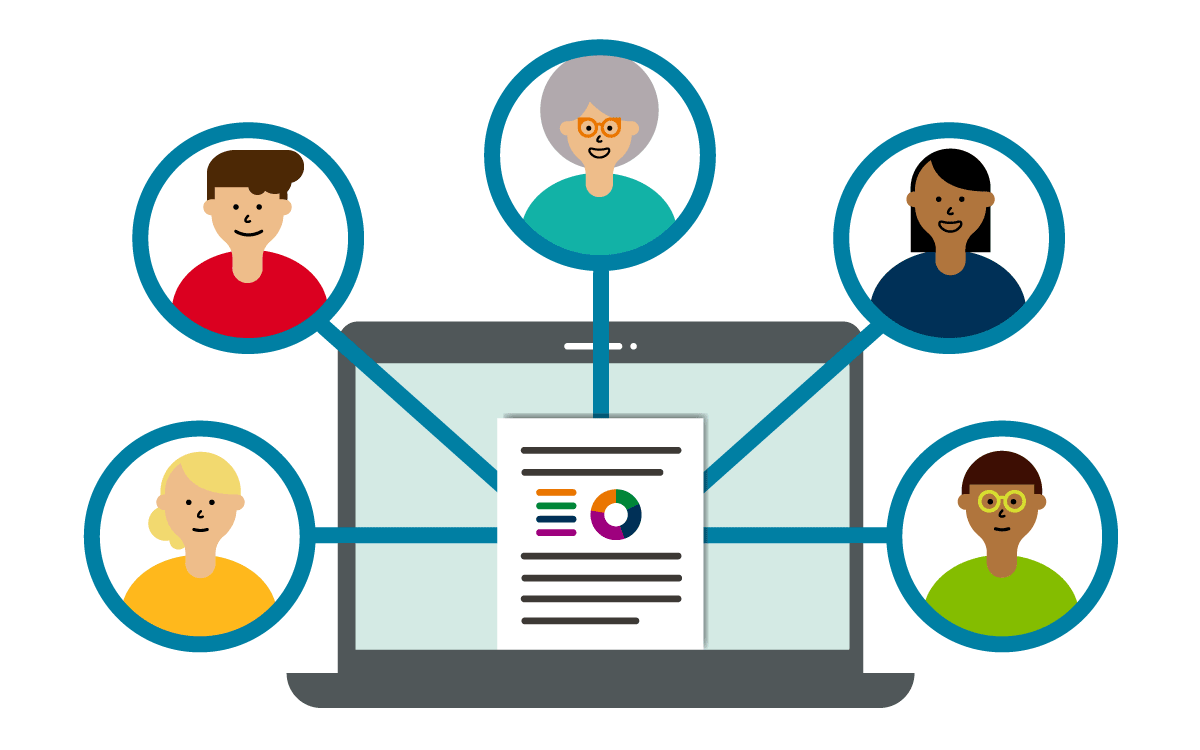
Freehand Grader (beta) gives you an effective way to quickly grade any type of problem and handwritten solution. You’re able to authentically assess your students and provide meaningful feedback, using the grade-as-you go rubric
Get started and learn more about Freehand Grader
Your course is unique. With MyLab and Mastering, your courseware can be, too. Easily tailor your course to fit your needs, whether you want to create assignments, manage multiple sections, or set prerequisites.
Get real-time data on students' progress so you can decide what to teach and how best to teach it.
Reach students before they fall behind. Early Alerts sends you data, early on, identifying students who are struggling. Available with many MyLab and Mastering courses.
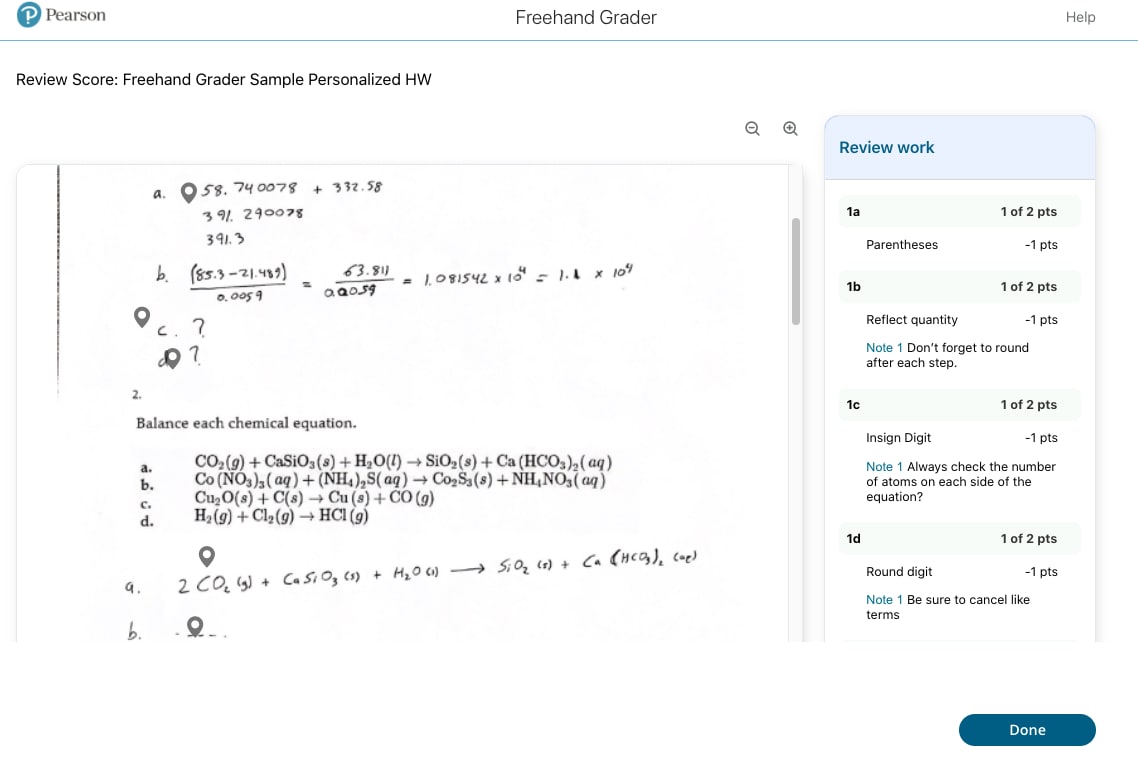
Quickly grade students’ hand-written solutions with Freehand Grader
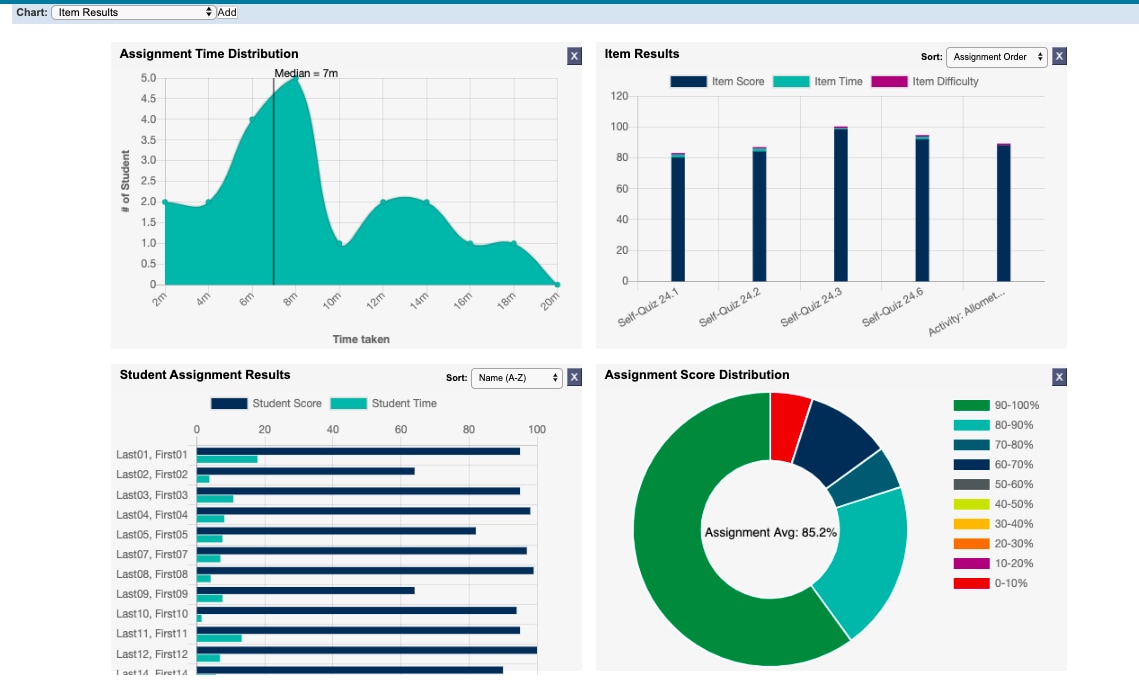
Mastering homework settings
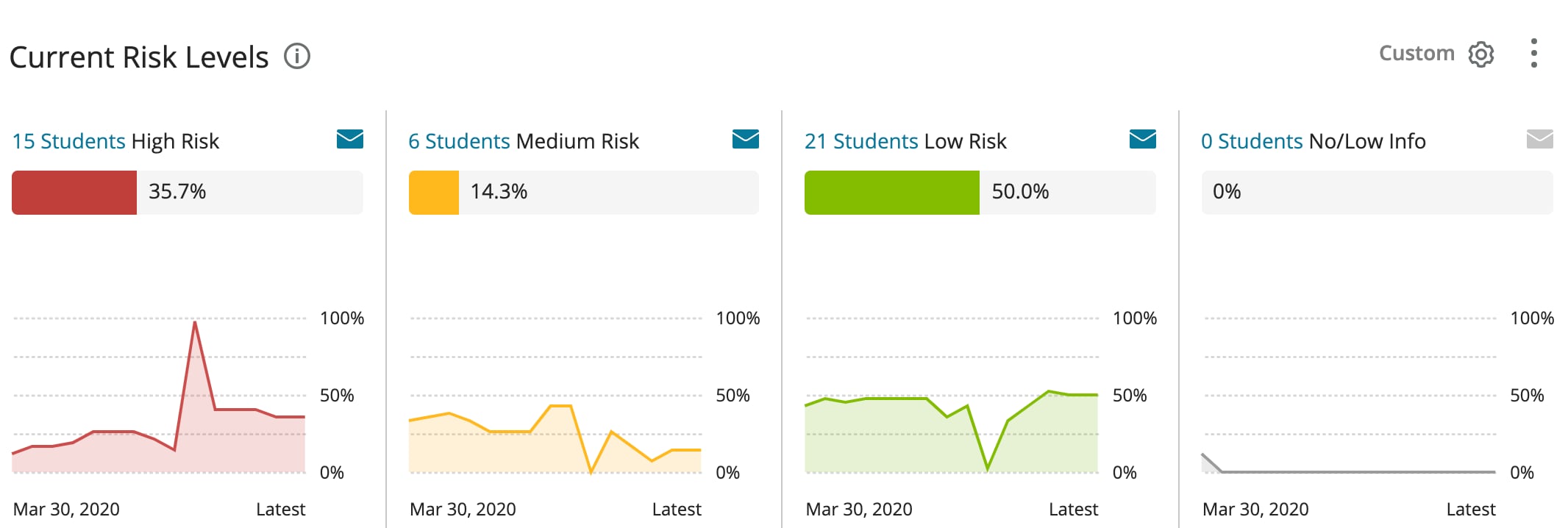
Early Alerts show risk levels for both the class and individual students
Your high standards deserve quality content to match them. That’s why we partner with respected authors who are also subject matter experts. Together we build interactive, course-specific content to more fully engage your students.
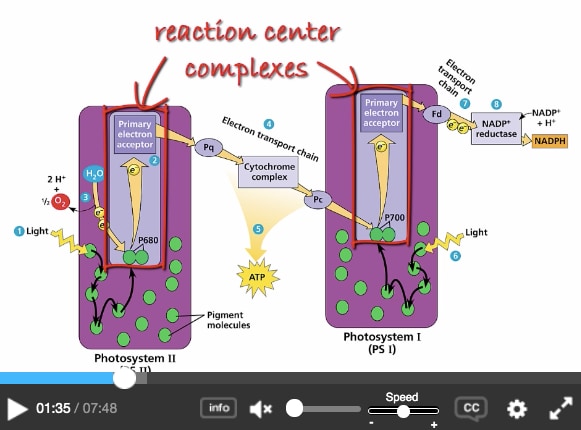
Produced with authors and key contributors, our large library of assignable product videos helps students visualize complex concepts and, in some cases, solve problems. Follow-up assessments gauge their comprehension. Watch a sample video featuring math and statistics author Mike Sullivan.
Assign a chapter or section of the Pearson eText to help students prepare for lectures, homework, and quizzes — and to hold them accountable for their work. Scheduled readings are posted to each student’s assignment page, and you can link readings directly to a Mastering assignment.
To experience is to learn. Listening to a lecture and memorizing concepts aren’t enough. By creating opportunities to participate, engage, and practice, MyLab and Mastering support learning that lasts.
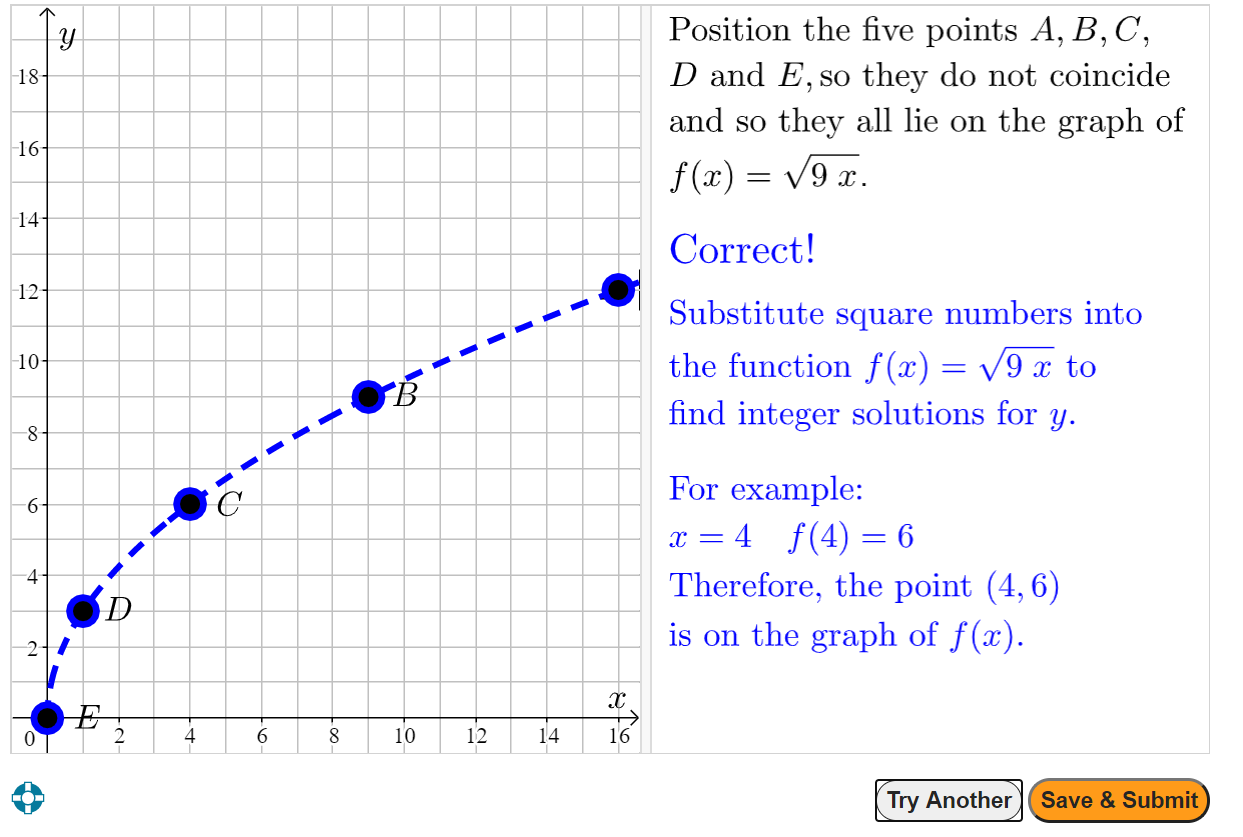
With these gradable graphing exercises, you can observe students interacting with virtual graphs as they would on paper. It’s a quick and easy way for them to show you what they know.
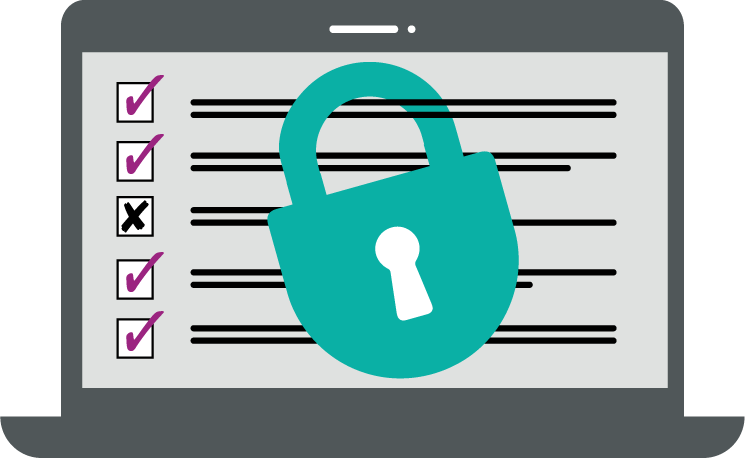
Online proctoring gives you the peace of mind to know your exams are administered securely and honestly. Our MyLab products can be synced up with any proctoring service, including one of our two fully integrated partners:
Help every student achieve more. With Pearson Inclusive Access, students can have affordable, quality, and digital-first course materials on or before the first day of class — giving them a running start toward success. Learn more.